From Office-Bound Devices to Global Access: The BridgeLink Story


The Problem: The Phones Are on a Desk, the Developers Aren't#
I built BridgeLink while I was founding engineer at NativeBridge. It's a small open-source CLI that does one thing: it makes an Android phone plugged into one computer usable, over plain adb, from any other computer on the internet.
Here's the situation it's built for. (The team below is an illustration, not a customer.)
Picture a five-person Android team in Bangalore building a UPI app that has to work on the phones Indians actually carry: Redmi, Realme, Vivo, Samsung's A-series, plus a couple of Pixels for reference. Over a few years they've bought a shelf of test devices:
Office device shelf (illustrative):
├── Samsung Galaxy A-series and S-series
├── Google Pixel (reference devices)
├── Xiaomi Redmi Note, Realme, Vivo, OnePlus
├── A foldable and a tablet or two
└── 50+ phones, several lakh rupees of hardware
Then the team goes hybrid. The shelf is in Koramangala; the developers are in HSR Layout, Whitefield and Indiranagar. A user reports a crash that only happens on one Redmi model. The fix takes ten minutes to write and an afternoon to verify, because verifying it means getting to the office.
The options they have today:
- Go to the office for every device-specific bug, through Bangalore traffic.
- Courier phones around and lose days to shipping.
- Rent devices in a cloud device farm, paying by the minute or by the slot, while their own phones sit idle on the shelf.
What I wanted instead: keep using the phones you already own, and make them reachable from anywhere, as easily as plugging in a USB cable.
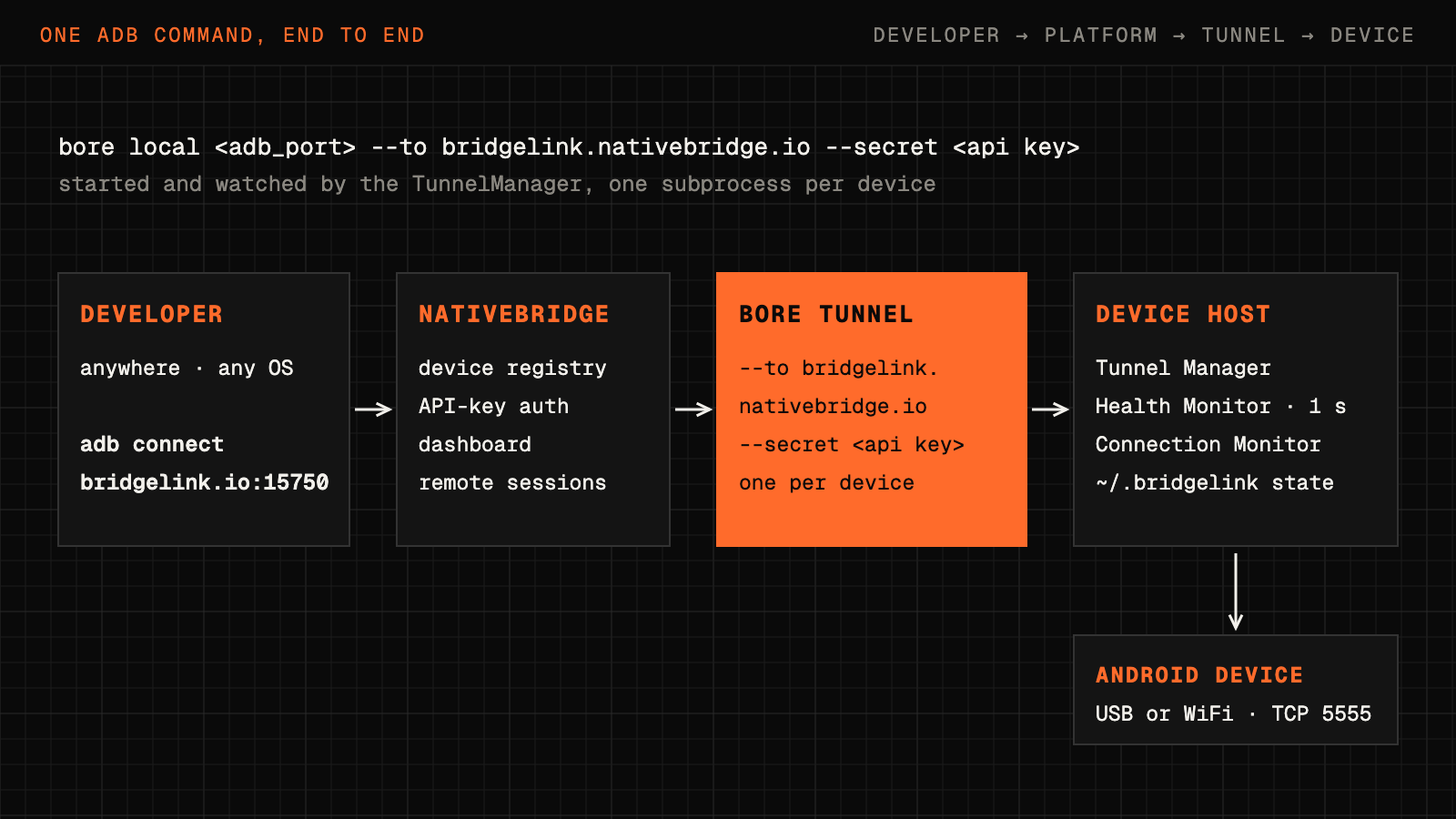
An illustrative team's test phones sit on a shelf while its developers work elsewhere. BridgeLink tunnels adb over the internet: adb tcpip 5555, adb forward to a host port, bore local to bore.pub:15750, then adb connect from anywhere, with a caveat that bore traffic is unencrypted. A tunnel manager, WiFi mode and one-second health and connection monitors turn the weekend script into an early open-source CLI (0.3.0, MIT).
The Vision: Your Physical Devices, Universally Accessible#
%% title: Traditional vs BridgeLink
flowchart LR
    subgraph TR["Traditional approach"]
        direction TB
        D1@{ icon: "sd:user", label: "Developer" } --> U@{ icon: "sd:usb", label: "USB cable" } --> P1@{ icon: "sd:phone", label: "One physical device<br/>on the same desk" }
    end
    subgraph BL["BridgeLink approach"]
        direction TB
        D2@{ icon: "sd:laptop", label: "Developer anywhere<br/>Windows · macOS · Linux" } --> I@{ icon: "sd:globe", label: "Internet" }
        I --> T["Authenticated bore tunnel"]:::core
        T --> P2@{ icon: "sd:phone", label: "Physical devices anywhere<br/>Redmi · Realme · Vivo · Pixel" }
    end
    class D1,D2 client
    class U,I edge
    class P1,P2 external
The "Wait, That Should Be Simple!" Moment#
The question that started it: ADB already works over a local network (adb connect 192.168.1.10:5555). So why couldn't it work over the internet?
The Core Insight:
Traditional Approach:
Developer → USB Cable → Physical Device

The Dream:
Developer (Anywhere) → Internet → Secure Tunnel → Physical Device (Anywhere)
The Technical Vision:
- Tunneling: Expose ADB over the internet using authenticated bore tunnels
- Device Registry: Central platform tracking all connected devices
- Auto-Management: Health monitoring, auto-reconnection, state tracking
- WiFi Support: Connect devices wirelessly, no USB required
- Beautiful CLI: Simple commands that "just work"
- Dashboard Control: Web interface for device management and remote sessions
The Research Journey: Learning from the Best#
Before writing a single line of code, I needed to understand the landscape. How were others solving remote device access?
What renting costs (cloud device farm list prices, October 2026):
(Converted at about ₹88/$. Prices change, so check the vendors' pages.)
Metered pricing is built for short automated runs. Keep one phone open for a working day (8 hours × 20 days) and it's about $1,630 a month, which is why anyone who needs devices all day buys unmetered slots instead. More on the full math below.
The "We Can Build This Better" Moment: What if instead of renting devices in someone else's cloud, we made our own devices remotely accessible? We already own them. We just need a way to reach them over the internet.
The Android Research Deep Dive: The Android ecosystem had already solved device control brilliantly with ADB (Android Debug Bridge)—a tool every Android developer knows and loves.
ADB: The Foundation We Needed:
# ADB capabilities that changed everything:
adb devices                        # List all connected devices
adb -s SERIAL shell               # Execute shell commands
adb -s SERIAL install app.apk     # Install applications
adb -s SERIAL logcat              # Real-time log streaming
adb connect IP:PORT               # Connect to device over TCP/IP

# The revelation: ADB already supports remote connections!
adb connect 192.168.1.10:5555     # Local network
# But how do we make it work over internet? 🤔
The Missing Piece: Tunneling Enter bore - a modern, fast TCP tunnel that exposes local ports to the internet.
# bore's beautiful simplicity:
bore local 5555 --to bore.pub
# Output: Listening at bore.pub:15750

# Now ADB can connect globally:
adb connect bore.pub:15750
# Result: Physical device accessible from anywhere! 🎉
A security caveat: bore's --secret only authenticates the handshake. Per bore's README, the tunnel traffic itself is not encrypted, and classic adb tcpip traffic is plaintext too. ADB's own RSA key check still blocks computers the device hasn't authorized, but for anything sensitive, wrap the link in TLS, SSH or a VPN.
The Epiphany:
- We had: Physical Android devices we already own
- We had: ADB for complete device control
- We discovered: bore for simple internet tunneling
- We needed: Platform to orchestrate everything beautifully
This research phase was crucial - instead of reinventing device control or tunneling from scratch, we could focus on the management layer, health monitoring, and developer experience.
Initial Prototype: Proof of Concept#
Weekend 1 - The Basic Setup:
#!/bin/bash
# Simple script to expose a device remotely

# Enable ADB TCP mode on USB-connected device
adb -s 1d752b81 tcpip 5555

# Forward local port to device
adb -s 1d752b81 forward tcp:5000 tcp:5555

# Create bore tunnel
bore local 5000 --to bore.pub &

# Output the connection URL
echo "Connect from anywhere:"
echo "adb connect bore.pub:15750"
First success: adb connect came back connected, through a tunnel, to a phone that wasn't plugged into the machine I was typing on. It was manual and fragile, but it worked!
%% title: The weekend-1 prototype path
flowchart TD
    DEV@{ icon: "sd:laptop", label: "Developer anywhere<br/>adb connect bore.pub:15750" } --> BP@{ icon: "sd:cloud", label: "bore.pub:15750" }
    BP -->|"bore local 5000 --to bore.pub"| L["Local port 5000"]:::service
    L -->|"adb forward tcp:5000 tcp:5555"| D@{ icon: "sd:phone", label: "Device 1d752b81<br/>adb tcpip 5555" }
    class DEV client
    class BP edge
    class D core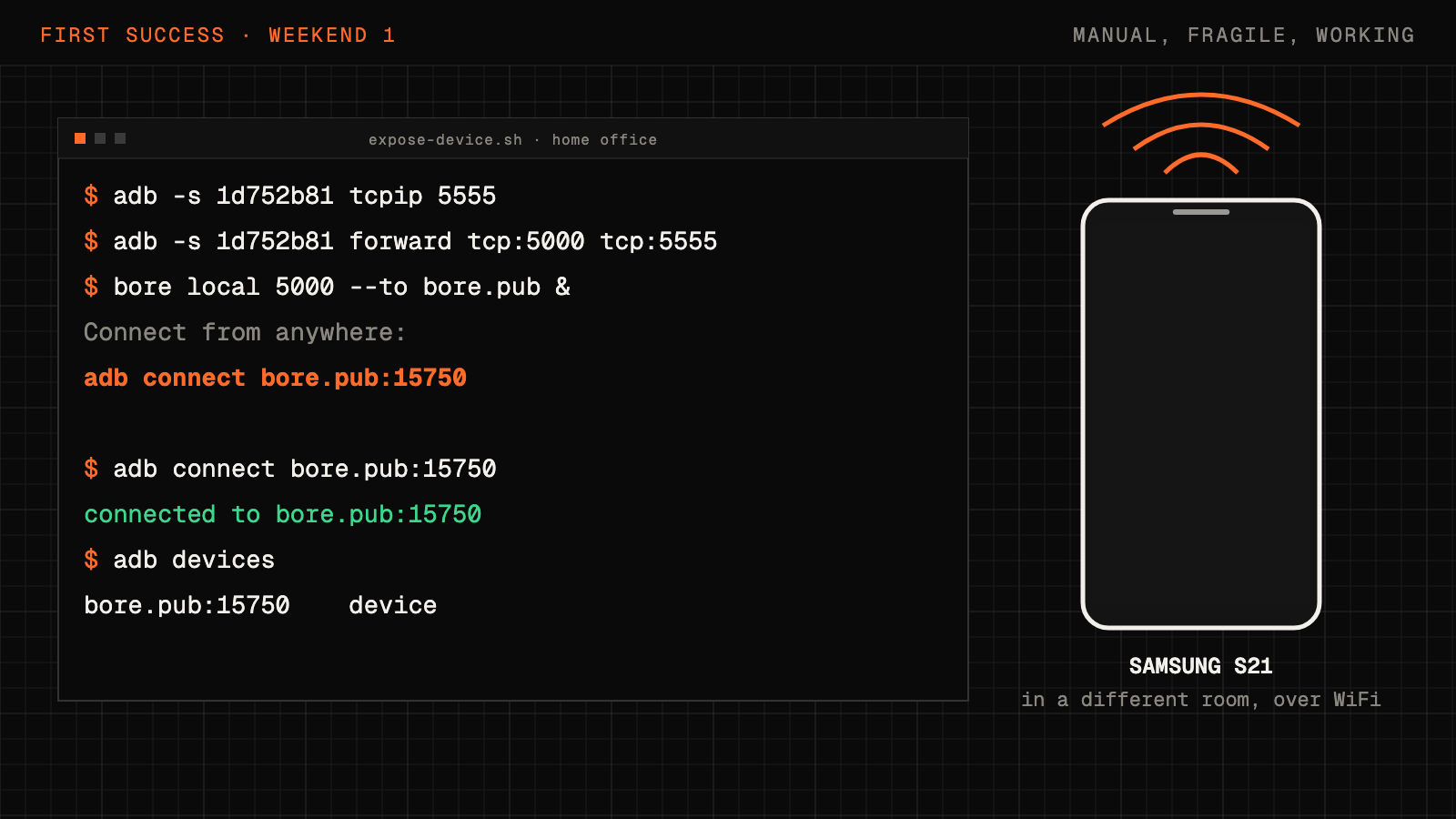
The Technical Journey: From Script to Platform#
Challenge 1: The "Tunnel Hell" Problem#
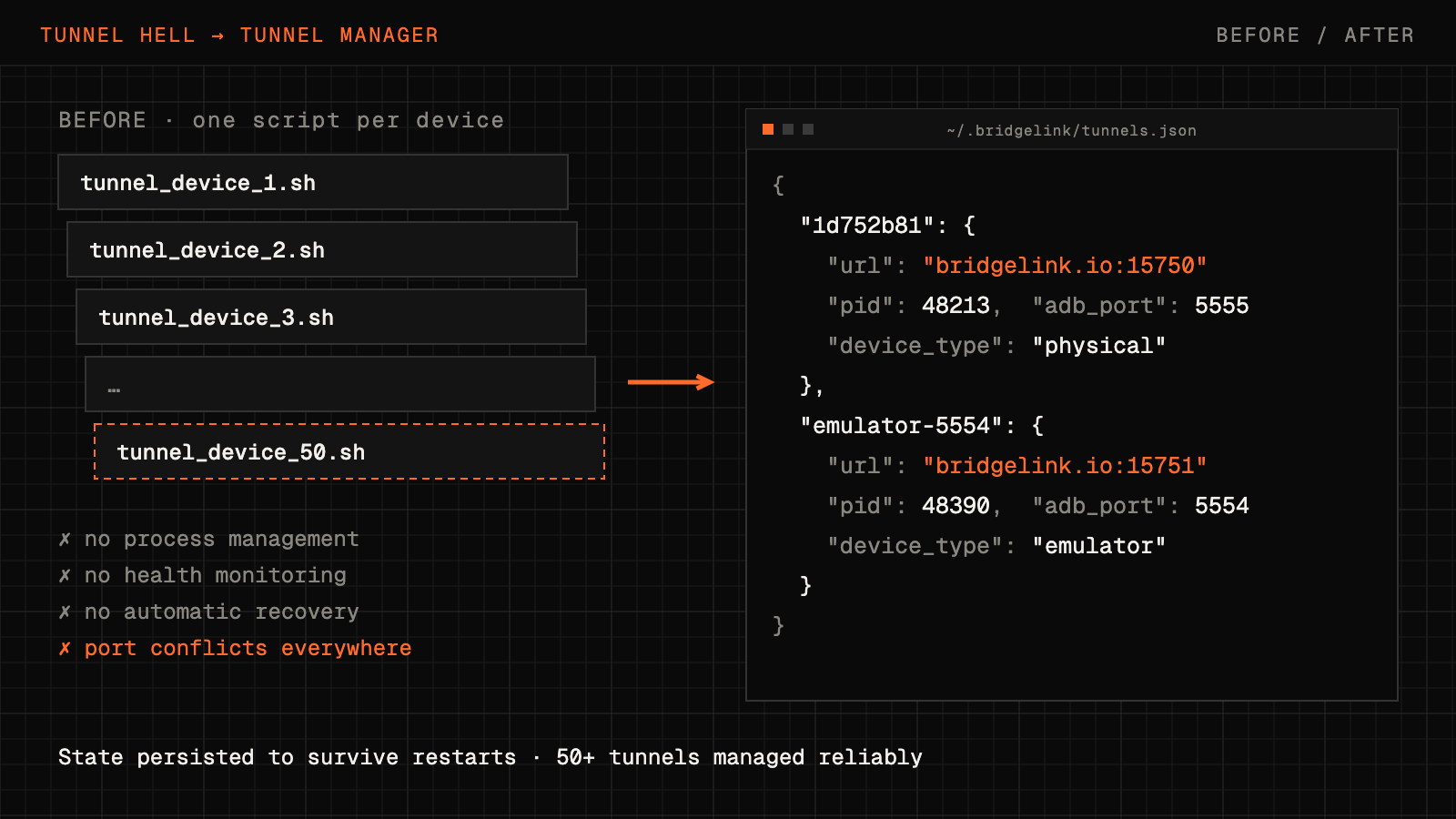
The Problem: Running tunnel processes manually was chaos. Processes died randomly, ports conflicted, and we had no idea which device was on which tunnel.
Failed Approach #1 - Shell Scripts:
# This quickly became unmaintainable
# tunnel_device_1.sh
# tunnel_device_2.sh
# tunnel_device_3.sh
# ...
# tunnel_device_50.sh 😱

# Problems:
# - No process management
# - No health monitoring
# - No automatic recovery
# - Port conflicts everywhere
The Platform Revolution:
# Breakthrough: Proper tunnel management with state tracking

class TunnelManager:
    def __init__(self):
        self.tunnels = {}  # session_id -> TunnelInfo
        self.state_file = Path.home() / ".bridgelink" / "tunnels.json"

    def create_tunnel(self, device_serial, adb_port, api_key, device_type):
        """Create and manage bore tunnel lifecycle"""

        # Start bore tunnel subprocess
        process = subprocess.Popen([
            'bore', 'local', str(adb_port),
            '--to', 'bridgelink.nativebridge.io',
            '--secret', api_key
        ], stdout=subprocess.PIPE, stderr=subprocess.PIPE)

        # Parse tunnel URL from bore output
        tunnel_url = self._parse_tunnel_url(process)

        # Store tunnel info
        tunnel_info = {
            'device_serial': device_serial,
            'url': tunnel_url,
            'pid': process.pid,
            'adb_port': adb_port,
            'device_type': device_type
        }

        # Persist state to survive restarts
        self._save_state()

        return tunnel_info
Results:
- Before: Manual chaos, frequent failures
- After: Automated, persistent, recoverable tunnel management
- Impact: One process that knows every device's tunnel, survives restarts and cleans up after itself
Challenge 2: WiFi Connection Support#
The USB Cable Problem:
Reality Check:
├── Remote work: Devices at home, but USB cable length = 6 feet
├── Testing setup: Want device on desk, laptop anywhere in room
├── Multiple devices: USB hub cable management nightmare
└── Flexibility: Need to move devices without reconnecting cables
The WiFi Solution:
# BridgeLink's WiFi magic: 3-step automated setup

class WiFiConnectionFlow:
    def setup_wifi_device(self, usb_serial):
        """Transform USB device to WiFi device in 3 steps"""

        # Step 1: Enable TCP/IP mode on USB device
        subprocess.run(['adb', '-s', usb_serial, 'tcpip', '5555'])
        click.echo("✓ TCP/IP mode enabled on port 5555")

        # Step 2: Get device WiFi IP automatically
        result = subprocess.run(
            ['adb', '-s', usb_serial, 'shell', 'ip', 'route'],
            capture_output=True, text=True
        )
        device_ip = self._parse_ip_from_route(result.stdout)
        click.echo(f"✓ Device IP address: {device_ip}")

        # Step 3: Connect via WiFi
        subprocess.run(['adb', 'connect', f'{device_ip}:5555'])
        click.echo(f"✓ Connected via WiFi: {device_ip}:5555")

        # Now you can disconnect USB cable!
        click.echo("💡 You can now disconnect the USB cable!")
        click.echo("   The device will remain connected via WiFi.")

        return f"{device_ip}:5555"  # New WiFi serial
Real-World Impact:
# Before WiFi support:
bridgelink devices add 1d752b81  # Must stay connected via USB

# After WiFi support:
bridgelink devices add --wifi 1d752b81
# Output:
# ✓ TCP/IP mode enabled
# ✓ Device IP: 192.168.1.15
# ✓ Connected via WiFi
# 💡 Disconnect USB cable now!

# Device is now wireless, tunnel still works globally! 🎉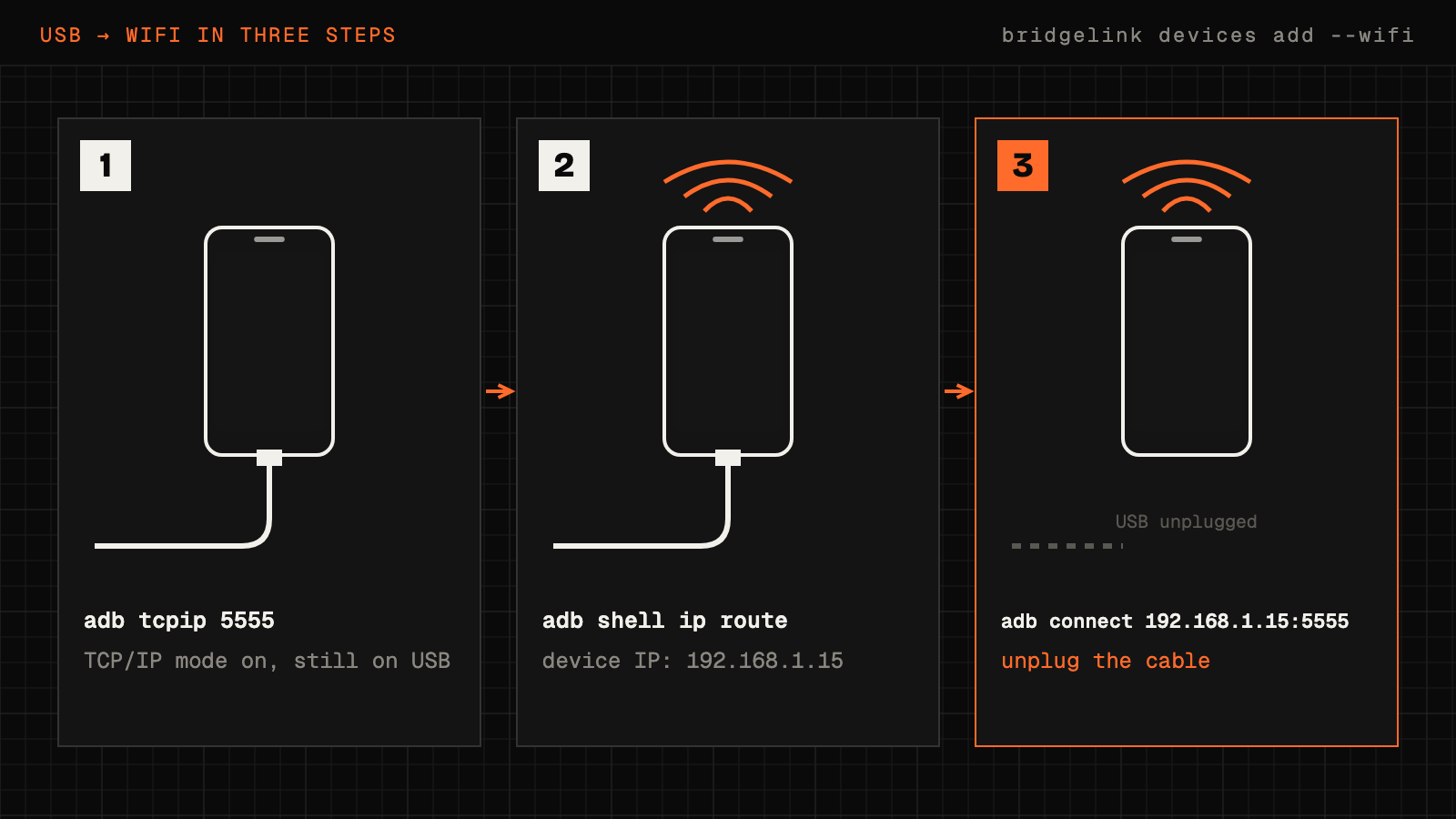
Challenge 3: The "Is My Device Still Alive?" Problem#
The Disconnect Reality:
Common Scenarios:
├── Device battery dies during testing
├── WiFi network temporarily drops
├── ADB daemon crashes on device
├── Developer accidentally unplugs USB
└── Result: Tunnel running, but device is dead 💀
The Health Monitor Solution:
class HealthMonitor:
    """Background daemon checking device health every 1 second"""

    def __init__(self, api_key):
        self.api_key = api_key
        self.running = False
        self.check_interval = 1  # Fast 1-second checks

    async def monitor_devices(self):
        """Continuously check all registered devices"""

        while self.running:
            devices = self.api_client.list_devices()

            for device in devices:
                if device['device_state'] != 'active':
                    continue

                # Check if device is actually reachable
                is_healthy = await self._check_device_health(
                    device['device_serial'],
                    device['device_type']
                )

                if not is_healthy:
                    # Device is down! Auto-deactivate
                    logger.warning(f"Device {device['device_serial']} disconnected")

                    # Stop tunnel
                    self.tunnel_manager.stop_tunnel(device['device_serial'])

                    # Update backend state
                    self.api_client.update_device_state(
                        device['device_serial'],
                        'inactive'
                    )

            await asyncio.sleep(self.check_interval)

    async def _check_device_health(self, serial, device_type):
        """Smart health check based on device type"""

        if device_type == 'emulator':
            # Emulators: Check if process is running
            return self._check_emulator_running(serial)
        else:
            # Physical devices: Check ADB connectivity
            try:
                # Run off the event loop, so one slow device can't stall the others
                result = await asyncio.to_thread(
                    subprocess.run,
                    ['adb', '-s', serial, 'shell', 'echo', 'ping'],
                    capture_output=True,
                    timeout=5
                )
            except subprocess.TimeoutExpired:
                return False  # a hung device is an unhealthy device
return result.returncode == 0The Auto-Activation Magic:
class ConnectionMonitor:
    """Auto-reconnect devices when they come back online"""

    async def watch_for_reconnections(self):
        """Monitor for devices coming back after disconnect"""

        while self.running:
            # Get all ADB-connected devices
            current_devices = set(ADBDeviceManager.list_devices())

            # Get devices with auto-activation enabled
            auto_activate_devices = self.api_client.get_auto_activate_devices()

            for device in auto_activate_devices:
                device_serial = device['device_serial']

                # Check if device just reconnected
                if device_serial in current_devices:
                    if device['device_state'] == 'inactive':
                        # Device is back! Auto-activate it
                        logger.info(f"Auto-activating {device_serial}")

                        # Create tunnel
                        is_wifi = self._is_wifi_connection(device_serial)
                        adb_port = self.tunnel_manager.setup_adb_tcp(
                            device_serial,
                            is_wifi=is_wifi
                        )
                        tunnel_info = self.tunnel_manager.create_tunnel(
                            device_serial, adb_port, self.api_key,
                            device['device_type']
                        )

                        # Update backend
                        device['device_details']['connection_mode'] = \
                            'WiFi' if is_wifi else 'USB'
                        self.api_client.add_device({
                            'device_serial': device_serial,
                            'device_type': device['device_type'],
                            'device_details': device['device_details'],
                            'tunnel_url': tunnel_info['url'],
                            'device_state': 'active'
                        })

                        logger.info(f"✅ {device_serial} auto-activated!")

await asyncio.sleep(1) # Check every secondReal-World Magic:
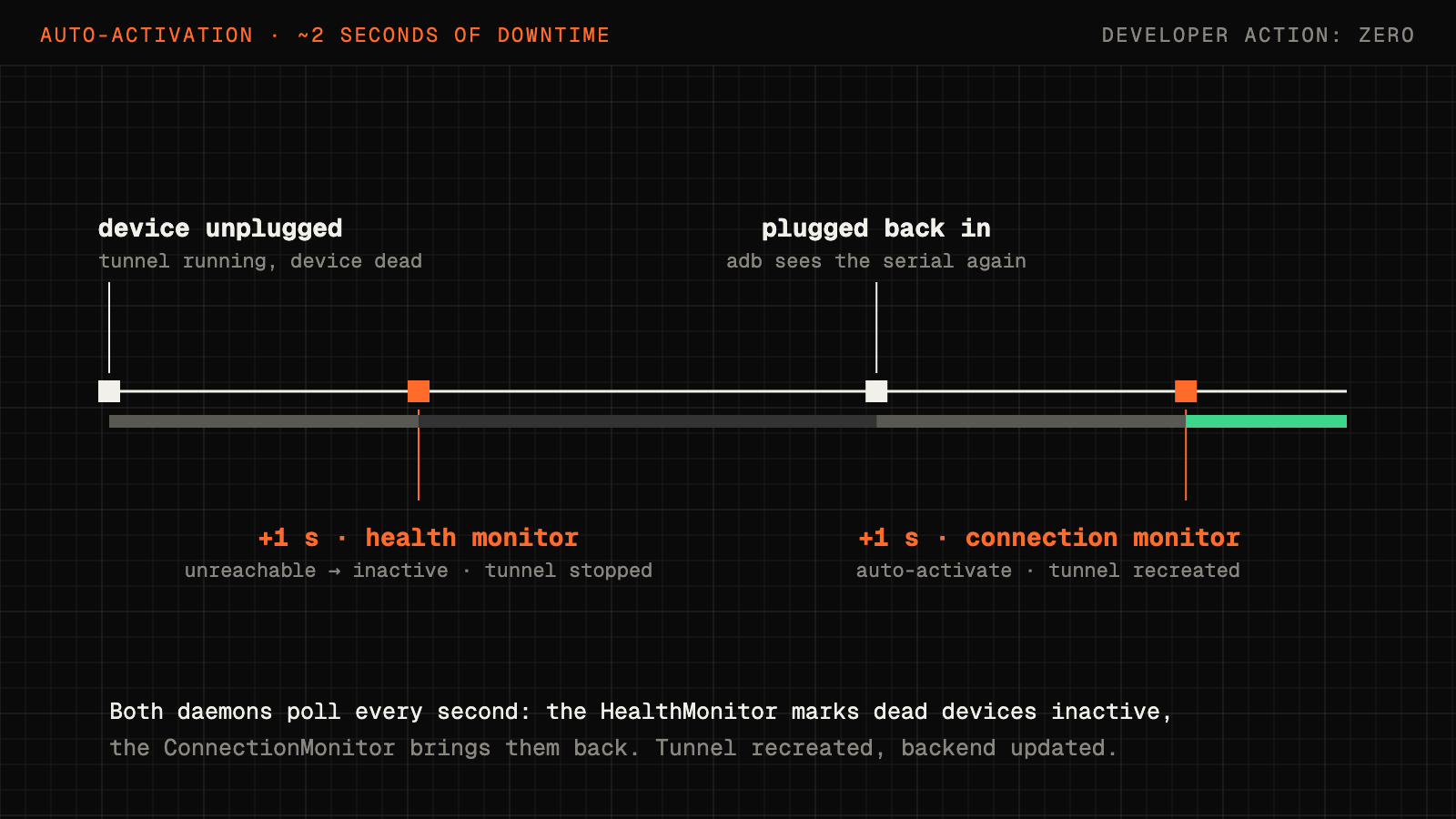
# Developer unplugs device accidentally
# 1 second later: Health monitor detects, marks inactive

# Developer plugs device back in
# 1 second later: Connection monitor detects, auto-activates
# Tunnel recreated, backend updated, device ready!

# Total downtime: ~2 seconds
# Developer action required: Zero! 🎉%% title: Health monitor and auto-activation
stateDiagram-v2
Active: active · tunnel running
Inactive: inactive · tunnel stopped
[*] --> Active: bridgelink devices add
Active --> Inactive: Health monitor · device unreachable · 1 second
Inactive --> Active: Connection monitor · device back · auto-activate · 1 second
note right of Inactive
Battery dies · WiFi drops
ADB daemon crashes · USB unplugged
end note
note left of Active
Total downtime ~2 seconds
Developer action required: zero
end note
class Active ok
class Inactive badadb tcpip 5555 puts device 1d752b81 in TCP mode, adb forward maps the host's port 5000 to it, and bore local 5000 --to bore.pub exposes that port as bore.pub:15750, so adb connect bore.pub:15750 works from anywhere. A health monitor pings each active device every second; on an unplug the tunnel stops and the device goes inactive, and the connection monitor recreates the tunnel when it returns: about 2 seconds down, no developer action.
Challenge 4: Beautiful Developer Experience#
The CLI Design Philosophy:
# Principle 1: Commands should be obvious
bridgelink devices add          # Not: bridgelink register-device
bridgelink devices list         # Not: bridgelink show-all-registered-devices

# Principle 2: Colorful and informative
✅ Authenticated as: you@example.com
📱 Fetching device information...
   Model: Galaxy S21
   Manufacturer: Samsung
   Android: 14 (SDK 34)
✓ Device 1d752b81 is now active!

# Principle 3: Guidance, not errors
❌ No devices found via ADB

Make sure:
  1. Device is connected via USB
  2. USB debugging is enabled
  3. ADB is installed and in PATH
The Color Revolution:
# BridgeLink's color palette for maximum clarity

import click

# Success = Green
click.echo(click.style("✅ Device activated!", fg='green', bold=True))

# Errors = Red
click.echo(click.style("❌ Failed to connect", fg='red', bold=True))

# Warnings/Info = Yellow
click.echo(click.style("⚠️ Security Warning", fg='yellow', bold=True))

# Process Steps = Blue
click.echo(click.style("📡 Setting up WiFi...", fg='blue', bold=True))

# Values/URLs = Cyan/Magenta
click.echo(click.style("192.168.1.15:5555", fg='cyan', bold=True))
click.echo(click.style("bridgelink.io:15750", fg='magenta', bold=True))
The Platform Architecture: How It All Comes Together#
%% title: BridgeLink system components
flowchart TD
    subgraph DT["Developer tier"]
        direction TB
        D1@{ icon: "sd:terminal", label: "CLI Commands<br/>Python Click framework" }
        D2@{ icon: "sd:dashboard", label: "Dashboard Interface<br/>Web-based device management" }
        D3["Remote ADB Access<br/>Global device connectivity"]:::client
        D4["Auto-Activation<br/>Set-and-forget device management"]:::client
        D1 ~~~ D3
        D2 ~~~ D4
    end
    subgraph MT["Management tier"]
        direction TB
        M1["Tunnel Manager<br/>bore tunnel lifecycle management"]:::core
        M2["Health Monitor<br/>1-second device health checks"]:::service
        M3["Connection Monitor<br/>Auto-activation for reconnected devices"]:::service
        M4["Session Persistence<br/>Survive restarts and failures"]:::service
        M5@{ icon: "sd:file", label: "State Management<br/>~/.bridgelink/ state storage" }
        M1 ~~~ M4
        M2 ~~~ M5
    end
    subgraph PT["Platform tier (NativeBridge)"]
        direction TB
        P1@{ icon: "sd:database", label: "Device Registry<br/>Central database of all devices" }
        P2@{ icon: "sd:key", label: "User Authentication<br/>API key-based access control" }
        P3["State Synchronization<br/>Keep device status in sync"]:::service
        P4["Dashboard URL<br/>Web interface for device control"]:::service
        P5["Remote Session API<br/>Start sessions from dashboard"]:::service
        P1 ~~~ P4
        P2 ~~~ P5
    end
    subgraph DVT["Device tier"]
        direction TB
        V1@{ icon: "tech:android", label: "Physical Devices<br/>Samsung, Pixel, OnePlus, etc." }
        V2@{ icon: "sd:usb", label: "ADB Connectivity<br/>USB or WiFi connection" }
        V3["TCP Mode<br/>Port 5555 forwarding"]:::external
        V4["Global Accessibility<br/>via authenticated bore tunnels"]:::external
        V1 ~~~ V3
        V2 ~~~ V4
    end
    DT --> MT --> PT --> DVT
    class D1,D2 client
    class M5,P1 store
    class P2 edge
    class V1,V2 external
Core Components#
1. Command Line Interface (The User's Best Friend):
# Complete CLI surface

@click.group()
def devices():
    """Manage Android devices"""
    pass

@devices.command(name='add')
@click.argument('device_serials', nargs=-1)
@click.option('--wifi', is_flag=True, help='Connect via WiFi')
@click.option('--auto-activate', is_flag=True, help='Auto-reconnect when plugged back in')
async def add_device(device_serials, wifi, auto_activate):
    """Register and activate devices with NativeBridge"""
    # Full WiFi setup flow
    # Tunnel creation
    # Backend registration
    # Health monitoring setup

@devices.command(name='list')
@click.option('--format', type=click.Choice(['table', 'json']))
def list_devices(format):
    """List all registered devices with beautiful table"""
    # Shows: #, Serial, Model, Brand, Type, Mode, State, Auto-Act, Tunnel URL

@devices.command(name='activate')
@click.argument('device_serial')
def activate_device(device_serial):
    """Reactivate existing device"""
    # Check backend registration
    # Create tunnel
    # Update state

@devices.command(name='deactivate')
@click.argument('device_serial', required=False)
@click.option('--all', is_flag=True)
def deactivate_device(device_serial, all):
    """Deactivate devices and stop tunnels"""
    # Stop tunnels
    # Update backend state
2. Background Daemons:
# Health Monitor - The Guardian
class HealthMonitorDaemon:
    """Runs in background, checks devices every 1 second"""

    def start(self, api_key):
        # Fork background process
        # Save PID to ~/.bridgelink/monitor.pid
        # Monitor all active devices
        # Auto-deactivate dead devices

# Connection Monitor - The Auto-Activator
class ConnectionMonitorDaemon:
    """Runs in background, watches for reconnected devices"""

    def start(self, api_key):
        # Fork background process
        # Save PID to ~/.bridgelink/connection_monitor.pid
        # Watch for auto-activate devices
        # Auto-create tunnels when device appears
3. Advanced Features:
# Enhanced device details collection
device_details = {
    'brand': 'Samsung',
    'model': 'Galaxy S21',
    'android_version': '14',
    'sdk_version': '34',
    'security_patch': '2024-10-01',
    'cpu': 'arm64-v8a',
    'ram_gb': '8.0',
    'storage_gb': '128',
    'resolution': '1080x2400',
    'density_dpi': '420',
    'connection_mode': 'WiFi'  # USB or WiFi
}

# Dashboard integration
dashboard_url = get_dashboard_url()
# dev: trust-me-bro.nativebridge.io/dashboard/bridgelink
# prod: nativebridge.io/dashboard/bridgelink

# Smart session detection
# If only 1 device: auto-select
# If multiple: show list to choose
What It Could Save: The Honest Math#
BridgeLink is young, and I don't have adoption numbers to show. What I can show is the math for a team that adopts it, using public list prices. These are potential savings, not measured results.
Scenario: a 10-phone team#
Renting 10 phones for remote access, all day, every working day:
├── AWS Device Farm, unmetered: 10 slots × $250  = $2,500/month (~₹2.2 lakh)
├── Per year:                                      $30,000 (~₹26 lakh)
└── Metered instead: ~$1,630 per phone-month     → ~$16,300/month for 10

Using 10 phones the team already owns, with BridgeLink:
├── Phones:        already on the shelf (or ~₹15,000-40,000 each to buy)
├── Host machine:  any spare laptop or mini PC with USB ports
├── BridgeLink:    free and open source (MIT)
└── Relay:         a NativeBridge account for the tunnel and dashboard
Potential saving: up to roughly ₹25 lakh a year for one 10-phone team, less the relay and any hardware you buy. Even buying all ten phones new (₹1.5–4 lakh) costs about two months of slot rent.
And at scale: if 50 teams like that used their own phones instead of renting slots, that's on the order of ₹13 crore a year staying in their budgets.
Where a device farm still wins#
Being honest about the trade-off is part of the design:
- Breadth: farms offer hundreds of models you'll never buy. BridgeLink only reaches phones you own.
- Maintenance: someone else replaces swollen batteries, updates OS versions and keeps devices charged.
- Parallel CI at scale: running one suite on 50 models at once is what farms are built for.
- Security: a farm is a managed service. With BridgeLink you're responsible for the host machine, the API key, and wrapping traffic in TLS, SSH or a VPN when it matters (see the caveat above).
So BridgeLink is for the daily loop: the phones you test on every day, which you've already paid for. Rent a farm for the long tail.
What the illustrative team gets back#
Back to the Bangalore team from the opening, with their shelf of phones on BridgeLink:
- 10:00 AMCrash report on a Redmi Note
- 10:05 AMbridgelink devices list (finds the Redmi's tunnel URL)
- 10:06 AMadb connect bridgelink.nativebridge.io:15750
- 10:07 AMDebugging the real Redmi from home in HSR Layout
No cab, no courier, and no slot rent for a phone that's already on their shelf.
Technical Deep Dive: The Magic Behind the Scenes#
WiFi Connection Flow#
class WiFiConnectionFlow:
    """Complete WiFi setup automation"""

    def setup_wifi_connection(self, usb_serial):
        """Transform USB device to WiFi device"""

        # Step 1: Enable TCP/IP mode
        click.echo(click.style("   Step 1/3: Enabling TCP/IP mode...", fg='blue'))
        result = subprocess.run(
            ['adb', '-s', usb_serial, 'tcpip', '5555'],
            capture_output=True, timeout=10
        )
        if result.returncode != 0:
            raise WiFiSetupError("Failed to enable TCP/IP mode")

        click.echo(click.style("   ✓ TCP/IP mode enabled on port 5555", fg='green'))
        time.sleep(3)  # Wait for mode switch

        # Step 2: Get device IP
        click.echo(click.style("   Step 2/3: Getting device IP address...", fg='blue'))
        result = subprocess.run(
            ['adb', '-s', usb_serial, 'shell', 'ip', 'route'],
            capture_output=True, text=True, timeout=10
        )

        device_ip = self._parse_ip_address(result.stdout)
        if not device_ip:
            raise WiFiSetupError("Could not determine device IP address")

        click.echo(click.style("   ✓ Device IP address: ", fg='green') +
                   click.style(device_ip, fg='cyan', bold=True))

        # Step 3: Connect via WiFi
        click.echo(click.style("   Step 3/3: Connecting via WiFi...", fg='blue'))
        result = subprocess.run(
            ['adb', 'connect', f'{device_ip}:5555'],
            capture_output=True, timeout=10
        )

        if result.returncode != 0:
            raise WiFiSetupError("Failed to connect via WiFi")

        click.echo(click.style(f"   ✓ Connected via WiFi: ", fg='green') +
                   click.style(f"{device_ip}:5555", fg='cyan', bold=True))

        # Success message
        click.echo(click.style("\n💡 You can now disconnect the USB cable!",
                              fg='yellow', bold=True))
        click.echo(click.style("   The device will remain connected via WiFi.",
                              fg='yellow'))

return f"{device_ip}:5555"%% title: WiFi connection flow
flowchart TD
U(["USB-connected device"]):::client --> S1["Step 1/3 · adb tcpip 5555"]:::service
S1 -->|"returncode != 0"| E1(["WiFiSetupError<br/>Failed to enable TCP/IP mode"]):::bad
S1 -->|"wait 3s for mode switch"| S2["Step 2/3 · adb shell ip route<br/>parse device IP"]:::service
S2 -->|"no IP"| E2(["WiFiSetupError<br/>Could not determine device IP address"]):::bad
S2 --> S3["Step 3/3 · adb connect IP:5555"]:::core
S3 -->|"returncode != 0"| E3(["WiFiSetupError<br/>Failed to connect via WiFi"]):::bad
S3 --> OK(["Connected via WiFi<br/>You can now disconnect the USB cable"]):::okAuto-Activation Intelligence#
class SmartAutoActivation:
    """Intelligent device reconnection"""

    async def handle_device_reconnection(self, device_serial):
        """Auto-activate device with full context awareness"""

        # Get device info from backend
        device = self.api_client.get_device(device_serial)

        if not device:
            logger.warning(f"Unknown device {device_serial} connected")
            return

        if not device.get('auto_activate'):
            logger.info(f"Device {device_serial} auto-activate disabled")
            return

        if device['device_state'] == 'active':
            logger.info(f"Device {device_serial} already active")
            return

        logger.info(f"🔄 Auto-activating {device_serial}...")

        # Detect connection mode
        is_wifi = self._is_wifi_connection(device_serial)
        connection_mode = 'WiFi' if is_wifi else 'USB'

        # Setup ADB TCP port forwarding
        adb_port = self.tunnel_manager.setup_adb_tcp(
            device_serial,
            is_wifi=is_wifi
        )

        if not adb_port:
            logger.error(f"Failed to setup ADB for {device_serial}")
            return

        # Create bore tunnel
        tunnel_info = self.tunnel_manager.create_tunnel(
            device_serial,
            adb_port,
            self.api_key,
            device['device_type']
        )

        if not tunnel_info:
            logger.error(f"Failed to create tunnel for {device_serial}")
            return

        # Update device details with current connection mode
        device_details = device['device_details']
        device_details['connection_mode'] = connection_mode

        # Update backend
        self.api_client.add_device({
            'device_serial': device_serial,
            'device_type': device['device_type'],
            'device_details': device_details,
            'tunnel_url': tunnel_info['url'],
            'device_state': 'active'
        })

        logger.info(f"✅ {device_serial} auto-activated!")
        logger.info(f"   Tunnel: {tunnel_info['url']}")
logger.info(f" Mode: {connection_mode}")Enhanced Device Information Collection#
class DeviceInformationCollector:
    """Collect comprehensive device details via ADB"""

    def collect_device_info(self, serial):
        """Get all device information in one go"""

        # Basic info
        model = self._get_prop(serial, 'ro.product.model')
        manufacturer = self._get_prop(serial, 'ro.product.manufacturer')
        android_version = self._get_prop(serial, 'ro.build.version.release')
        sdk_version = self._get_prop(serial, 'ro.build.version.sdk')

        # Enhanced info
        security_patch = self._get_prop(serial, 'ro.build.version.security_patch')
        cpu = self._get_prop(serial, 'ro.product.cpu.abi')

        # RAM info
        ram_result = subprocess.run(
            ['adb', '-s', serial, 'shell', 'cat', '/proc/meminfo'],
            capture_output=True, text=True
        )
        ram_gb = self._parse_ram(ram_result.stdout)

        # Storage info
        storage_result = subprocess.run(
            ['adb', '-s', serial, 'shell', 'df', '/data'],
            capture_output=True, text=True
        )
        storage_gb = self._parse_storage(storage_result.stdout)

        # Screen info
        resolution = self._get_resolution(serial)
        density_dpi = self._get_density(serial)

        return DeviceInfo(
            serial=serial,
            model=model,
            android_version=android_version,
            sdk_version=sdk_version,
            manufacturer=manufacturer,
            security_patch=security_patch,
            cpu=cpu,
            ram_gb=ram_gb,
            storage_gb=storage_gb,
            resolution=resolution,
            density_dpi=density_dpi
)Lessons Learned: What Worked and What Didn't#
Technical Wins#
1. WiFi Support Was Game-Changing:
USB-only approach: Devices tethered to the host, cable management nightmare
WiFi support: Devices anywhere on the network, clean setup, ultimate flexibility
2. Auto-Activation Eliminated Friction:
# Without auto-activation:
# Device disconnects → Manual: bridgelink devices activate SERIAL
# Device reconnects → Manual: bridgelink devices activate SERIAL

# With auto-activation:
# Device disconnects → Auto-deactivated (1 second detection)
# Device reconnects → Auto-activated (1 second detection)

# Developer action required: Zero! 🎉
3. A Colourful CLI Makes the Important Line Stand Out:
# Before colors: Plain white text, hard to scan
# After colors: Success = green, errors = red, info = yellow

# Result: the one red line in a wall of output is the one you notice
Technical Challenges Overcome#
1. Tunnel URL Parsing Complexity:
# Challenge: bore output format varies by version
# Solution: Robust regex parsing with fallbacks

def parse_tunnel_url(self, bore_output):
    """Parse tunnel URL from various bore output formats"""

    patterns = [
        r'listening at ([a-z0-9\.\-]+:\d+)',  # v0.4.0+
        r'connected to ([a-z0-9\.\-]+:\d+)',  # v0.3.x
        r'tunnel to ([a-z0-9\.\-]+:\d+)'      # v0.2.x
    ]

    for pattern in patterns:
        match = re.search(pattern, bore_output, re.IGNORECASE)
        if match:
            return match.group(1)

    raise TunnelParseError("Could not parse tunnel URL")
2. Cross-Platform Path Issues:
# Challenge: Windows vs macOS/Linux path differences
# Solution: pathlib for everything

from pathlib import Path

# Works everywhere
STATE_DIR = Path.home() / ".bridgelink"
MONITOR_PID = STATE_DIR / "monitor.pid"
MONITOR_LOG = STATE_DIR / "monitor.log"
3. Process Management Reliability:
# Challenge: Zombie processes, orphaned tunnels
# Solution: Proper cleanup with signal handlers

import signal
import atexit

class TunnelManager:
    def __init__(self):
        self.tunnels = {}

        # Register cleanup handlers
        atexit.register(self.cleanup_all)
        signal.signal(signal.SIGTERM, self.signal_handler)
        signal.signal(signal.SIGINT, self.signal_handler)

    def cleanup_all(self):
        """Ensure all tunnels stopped on exit"""
        for serial in list(self.tunnels.keys()):
            self.stop_tunnel(serial)
What Didn't Work Initially#
1. Real Device Streaming:
# Attempted: Stream device screen like iOS Bridge
# Problem: a full streaming stack was out of scope (scrcpy already streams over ADB, no root needed)
# Decision: Focus on ADB access, let developers use scrcpy separately
2. Automatic bore Installation:
# Attempted: Auto-install bore during pip install
# Problem: Platform-specific binaries, permission issues
# Solution: bridgelink setup command with clear instructions
3. Multiple Simultaneous Tunnels Per Device:
# Attempted: Create multiple tunnels for same device
# Problem: ADB port conflicts, confusing for users
# Solution: One tunnel per device, clear ownership
The Future: What's Next for BridgeLink#
Current Development Focus#
Performance Optimization:
- Faster tunnel creation (< 2 seconds)
- More efficient health checks
- Reduced memory footprint
- Better network reliability
Advanced Features Pipeline:
- Device pools — share devices across teams
- Reservation system — book devices for testing windows
- Integration with CI/CD — Jenkins, GitHub Actions
- Team management — organization accounts
- Analytics dashboard — usage metrics, uptime stats
Roadmap Ideas (No Dates Promised)#
- Stability: better error handling, tunnel recovery and logging
- Sharing: multi-user device pools and reservations
- Teams: organisation accounts, SSO, role-based access and audit logs
- CI/CD: run test suites against BridgeLink devices from GitHub Actions or Jenkins
Contributing#
The Project#
Project Stats:
├── GitHub Repository: https://github.com/himanshkukreja/bridgelink
├── Current Version: 0.3.0 (PyPI), also on Homebrew
├── License: MIT (fully open source)
├── Architecture: Python + Click + bore, with NativeBridge as relay and dashboard
└── Platforms: macOS, Linux, Windows
Community Needs:
# We especially need help with:
platform_support = [
    "Windows installer improvements",
    "Linux package managers (apt, yum)",
    "macOS Homebrew formula maintenance"
]

features = [
    "CI/CD integrations",
    "Team collaboration features",
    "Advanced device pooling"
]

documentation = [
    "Video tutorials",
    "Corporate deployment guides",
    "Troubleshooting database"
]
How to Get Involved#
For Users:
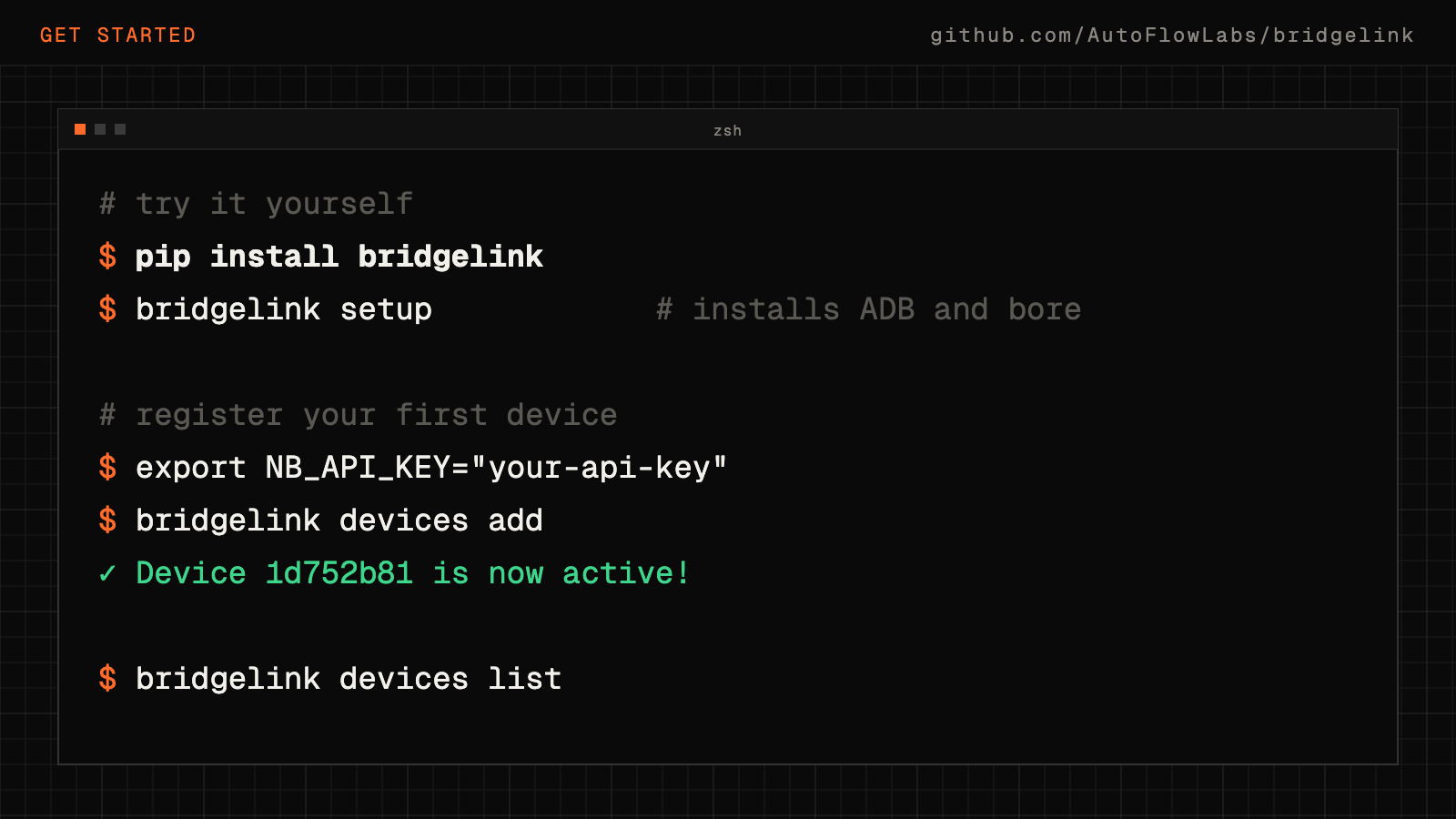
# Try it yourself:
pip install bridgelink   # or: brew tap AutoFlowLabs/tap && brew install bridgelink

# Quick setup:
bridgelink setup  # Installs ADB and bore

# Register your first device:
export NB_API_KEY="your-api-key"   # from the NativeBridge dashboard
bridgelink devices add

# View your devices:
bridgelink devices list
For Contributors:
# Join the development:
git clone https://github.com/himanshkukreja/bridgelink
cd bridgelink
pip install -r requirements.txt
pip install -e .- CLI enhancements and new commands
- Cross-platform compatibility testing
- Tunnel management improvements
- Documentation and examples
- Integration with popular CI/CD platforms
Conclusion: Use the Phones You Already Own#
Where BridgeLink Is Today#
It's an early, small open-source project: version 0.3.0 on PyPI and Homebrew, MIT licensed, built while I was founding engineer at NativeBridge. It does the core loop well: register a phone, tunnel it, keep it healthy, and bring it back on its own after a reconnect. Everything else is on the roadmap above.
What It Could Become#
The idea is bigger than the tool. Most Indian app teams already own the phones their users carry, and most of those phones spend their day on a shelf. Made reachable, they could serve:
├── Remote and hybrid teams testing on real hardware without a trip to the office
├── QA engineers in Pune or Hyderabad using phones that live in Bangalore
├── Small teams keeping ₹2 lakh+ a month of slot rent (for 10 phones) in their budget
├── Budget phone testing (Redmi, Realme, Vivo) from anywhere
└── Individual developers sharing a test phone with a collaborator
Personal Reflection#
Building BridgeLink taught me that the best tools often sit on top of something that already works. ADB was already a remote protocol; bore was already a tunnel. The real work was in the unglamorous parts: tunnel lifecycles, health checks, reconnects and clear output. That's where a weekend script becomes something you can hand to a teammate.
If you try it, I'd love to hear what breaks.
Want to try it?
- 🚀 Try it:
pip install bridgelink(orbrew tap AutoFlowLabs/tap && brew install bridgelink) - 🔧 Contribute: GitHub Repository
- 📖 Learn: Read the full documentation
- 💬 Tell me: what your team would need before it could use BridgeLink
Built for:
- 🏢 Bangalore/Pune/Hyderabad teams with a shelf of test phones and a distributed team
- 🏠 Remote developers testing on budget phones (Redmi, Realme, Vivo)
- 💰 Cost-conscious teams who'd rather not rent what they already own
- 🚀 Individual developers building for Bharat
BridgeLink: the phones on your desk, usable from anywhere.
Read it through to close the case.
0/10 sections read. Each one counts after a few minutes of actual reading in it; skipping ahead doesn't. The case closes itself once every section is read.
All case files →Wire the tunnel
Rebuild Priya's weekend prototype port by port, move a phone off its USB cable, then keep it alive when the battery dies. Four quick steps, all from this case file.
- ~2 MIN
- 4 STEPS · 11 PTS
- SOLVE AT 8/11
- +25 XP
this case in shorts · 2
play them all →One idea from this case in about a minute each, made for your phone.

Discussion